The Valider app offers powerful address validation tools that help ensure accurate and deliverable customer information during checkout. For Shopify users, integrating the app into your checkout process is straightforward, but the steps vary depending on your Shopify plan. This article will guide you through the process of activating the Valider app in your checkout flow.
I. For Shopify Plus Users:
If you are using the Shopify Plus plan, you will need to add an App Block to your checkout page to enable the Valider app. Here's how you can do it:
Go to the Checkout Editor in your Shopify Admin.
Navigate to the Checkout Editor to access your checkout settings.
Click "Add app block" at the Shipping section.
In the Shipping section, click "Add app block", then select Valider app from the list of available apps.
Click Save on the top right corner of the screen to apply the changes.
Once the block is added, make sure to click Save to confirm the changes and activate the app on your checkout page.
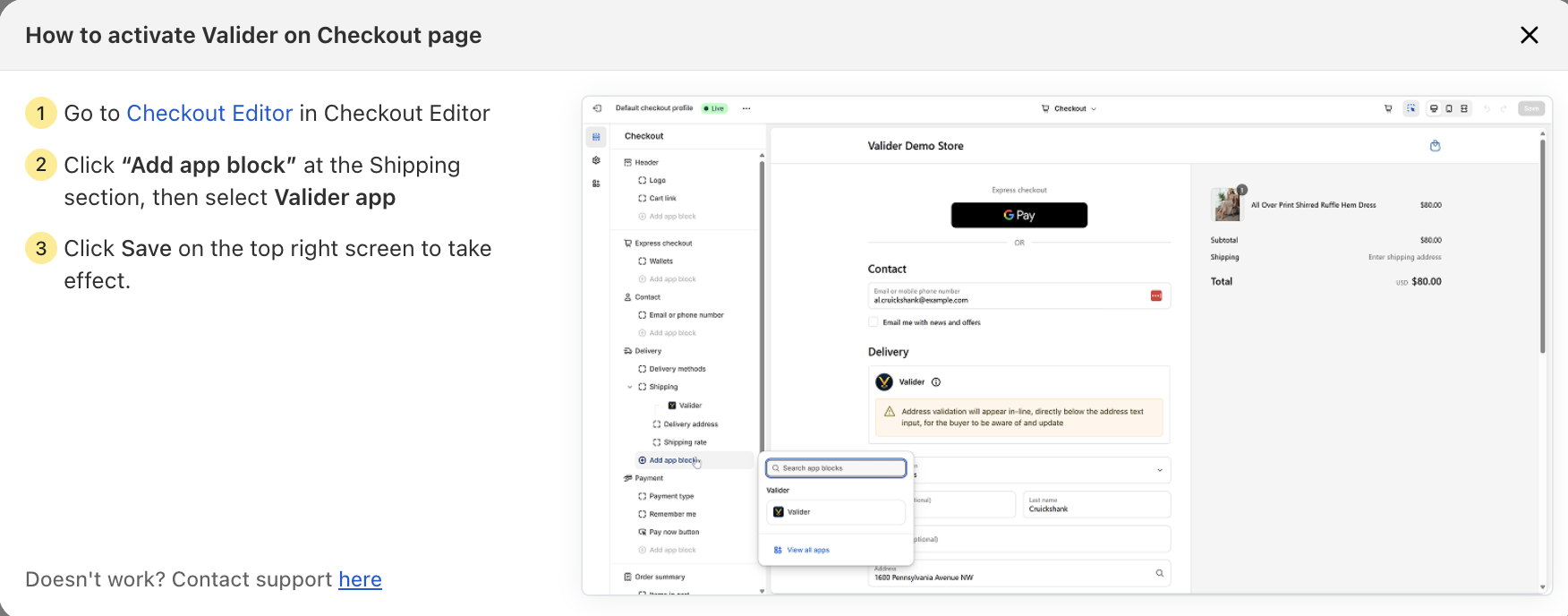
By following these steps, the Valider app will be integrated into your Shopify Plus checkout page, allowing you to provide real-time address validation during checkout.
II. For Shopify Users Without Shopify Plus:
If you are not on the Shopify Plus plan, you do not need to add the app block. Instead, you can directly proceed to set up your validation rules within the Valider app. The app will function with the configured rules without the need to modify the checkout page using the app block.
III. Additional Information
Address Validation Display: Once activated, the Valider app will display address validation warnings and suggestions directly in the shipping address section of the checkout page, alerting customers when there is an issue with their address input.
Customization: You can easily customize the rules in the app to match your specific business needs. This ensures that you only validate and filter out incorrect or incomplete addresses, improving the accuracy of your order fulfillment process.
Should you encounter any issues or need further assistance, feel free to contact our support team at support@valider.app, and we’ll be happy to help you!
Was this article helpful?
That’s Great!
Thank you for your feedback
Sorry! We couldn't be helpful
Thank you for your feedback
Feedback sent
We appreciate your effort and will try to fix the article