Custom checkout rules give merchants the ability to control validation, shipping, payment, and fulfillment logic with precision. With Valider, you can create powerful checkout rules without Shopify Plus, ensuring a smoother, more reliable checkout experience for both merchants and customers.
This guide explains how rule creation works in Valider and how each configuration step contributes to a more controlled and optimized checkout flow.
Why Checkout Rules Matter
Every checkout interaction is an opportunity for errors—or optimization. Incomplete addresses, unsupported payment methods, incorrect shipping options, or invalid cart conditions can lead to failed orders, fulfillment issues, and customer frustration.
Checkout rules help businesses:
Prevent invalid or incomplete customer input
Enforce shipping and payment restrictions
Maintain fulfillment accuracy
Deliver a consistent checkout experience
By configuring rules at the checkout level, issues are resolved before an order is placed.
How Rule Creation Works in Valider
Valider’s rule builder allows merchants to define what should be checked, when it should be checked, and what action should occur if conditions are met.
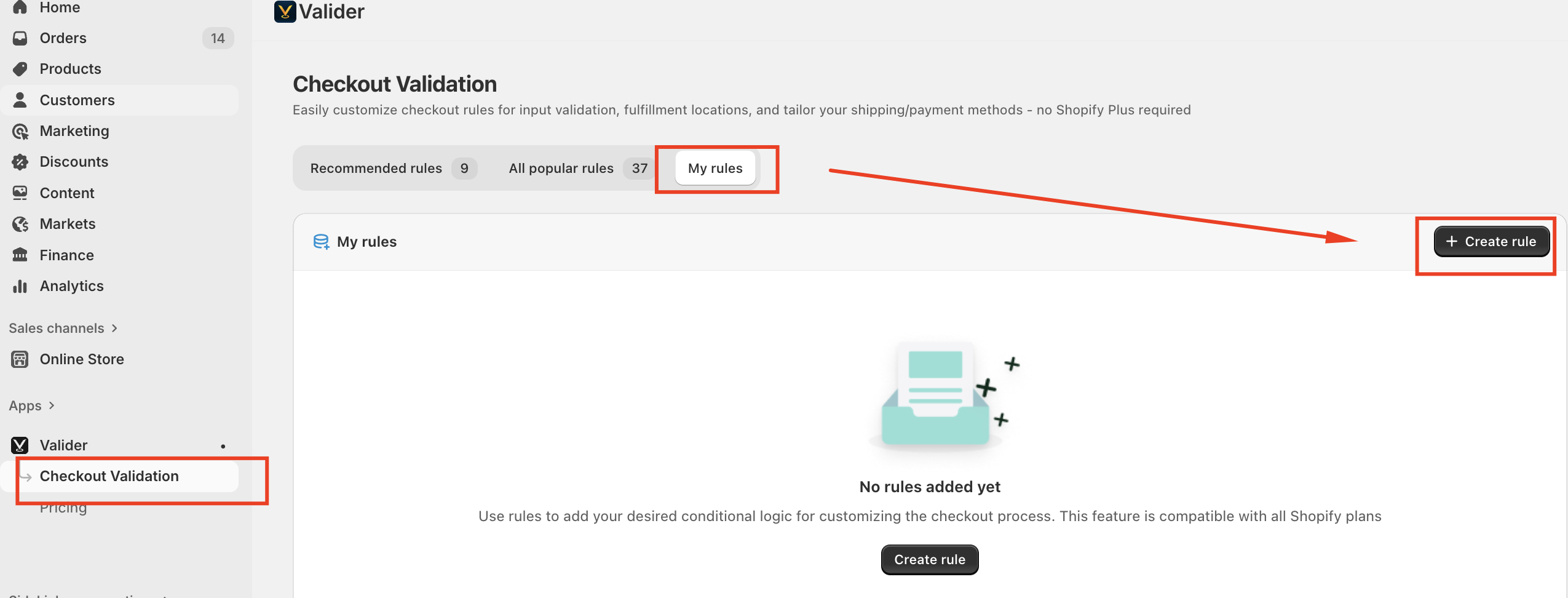
To begin, merchants navigate to the Checkout Validation section in the Valider app, open the My rules tab, and select Create rule. From there, rules are configured through a structured and intuitive setup.
Rule Categories Explained
Each rule starts with selecting a category. The category defines which part of the checkout the rule applies to.
Address Validation
Used to validate shipping or billing address fields such as street address, ZIP/postal code, city, state, or country.
Customer Validation
Applies rules based on customer-related data, such as email or customer attributes.
Cart Validation
Controls checkout behavior based on cart contents, including products, quantities, or tags.
Payment Customization
Shows, hides, or restricts payment methods based on defined conditions.
Shipping Customization
Controls which shipping methods are available depending on address or cart rules.
Fulfillment Location Validation
Ensures orders align with specific fulfillment locations or inventory rules.
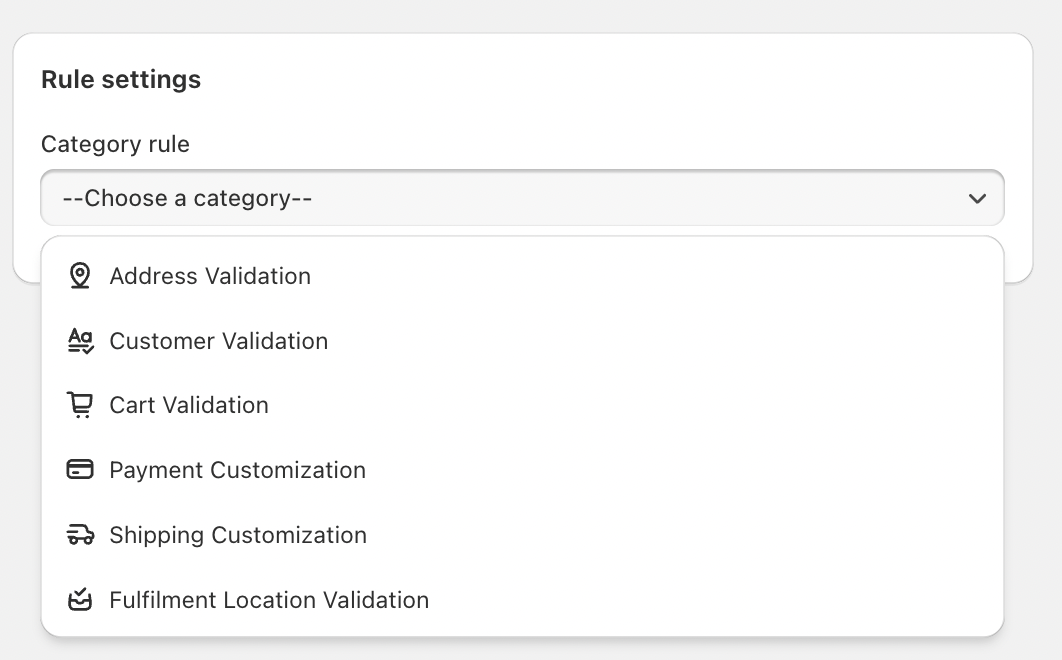
Selecting the correct category ensures the rule runs at the right stage of checkout.
Rule Identification and Documentation
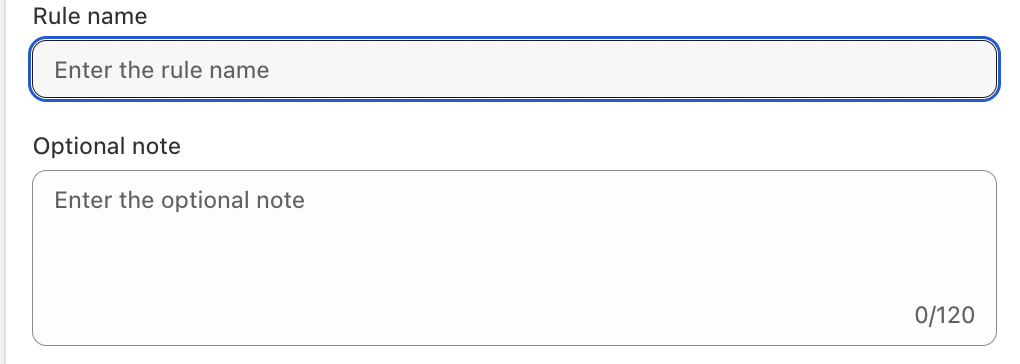
Each rule includes a Rule name, which serves as an internal identifier. Clear and descriptive names make it easy to manage multiple rules, such as:
“Require ZIP Code for US Orders”
An optional note can also be added to document the rule’s purpose, special logic, or business context—helpful for teams managing complex configurations.
Defining Rule Conditions
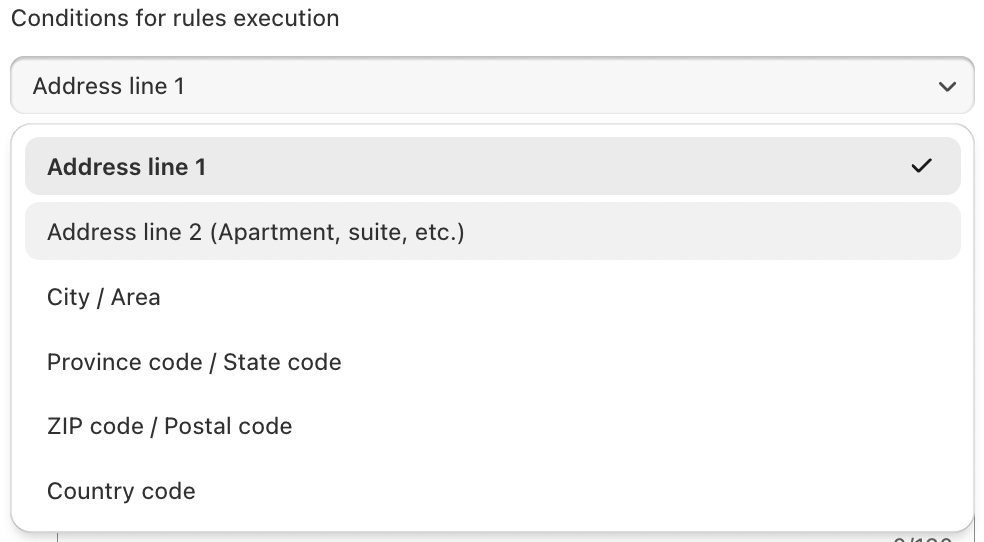
Conditions determine when a rule is triggered.
For address-related rules, conditions may include:
Address line 1
Address line 2 (Apartment, suite, etc.)
City or area
State or province code
ZIP or postal code
Country code
Activating and Managing Rules
After configuration, the rule is saved and enabled. Once active, it automatically applies to checkout whenever its conditions are met.
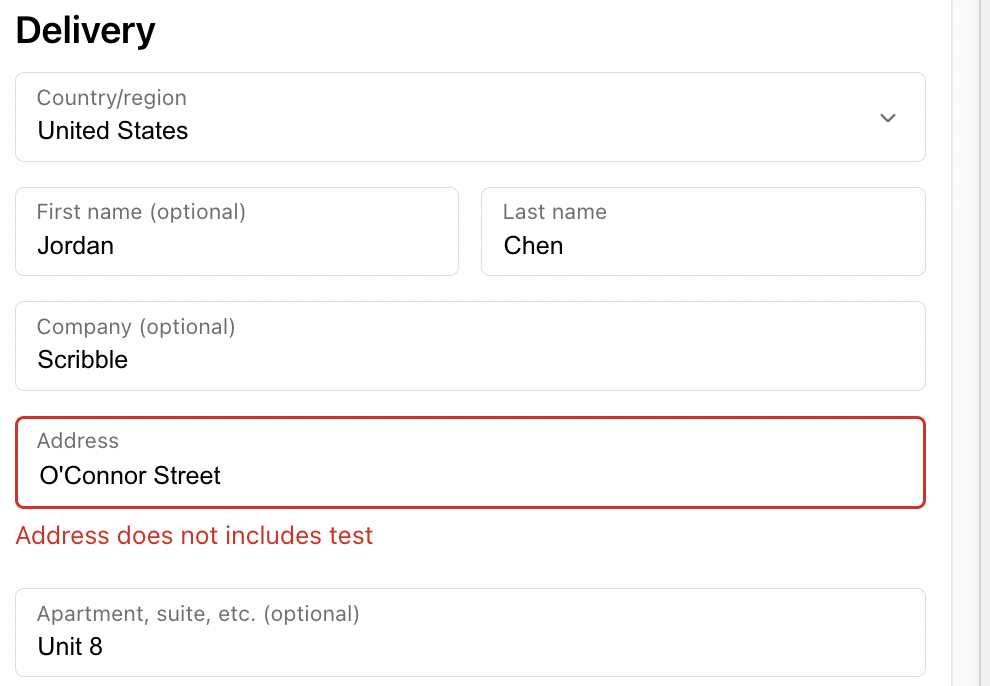
Edit rule settings
Enable or disable rules
Review rule names and notes
Adjust conditions as business needs evolve
Conclusion
Valider’s rule system gives merchants complete control over checkout validation, shipping, payment, and fulfillment logic—without technical complexity or Shopify Plus requirements. By creating well-structured rules, businesses can prevent errors, streamline operations, and deliver a more reliable checkout experience.
Should you have any further questions, please feel free to drop an email to support@valider.app
Was this article helpful?
That’s Great!
Thank you for your feedback
Sorry! We couldn't be helpful
Thank you for your feedback
Feedback sent
We appreciate your effort and will try to fix the article