Issue:
You’ve set up a rule to block special characters like !@#$%$, but the system is only blocking the exact sequence of characters. This means combinations of these characters in different orders may still be allowed, causing issues with form validation.
Cause:
The Validator app blocks input based on exact string matches. If you set a rule to block !@#$%$, the app will only block that specific sequence. It won't block characters like !, @, #, $, or % if they appear in a different order or combination.
Solution: Block Each Character Individually
To ensure that characters like !, @, #, $, and % are blocked regardless of their order or combination, you need to create separate rules for each individual character.
Steps to Fix:
Identify the Characters to Block:
List all the characters you want to block, like
!,@,#,$,%, etc.
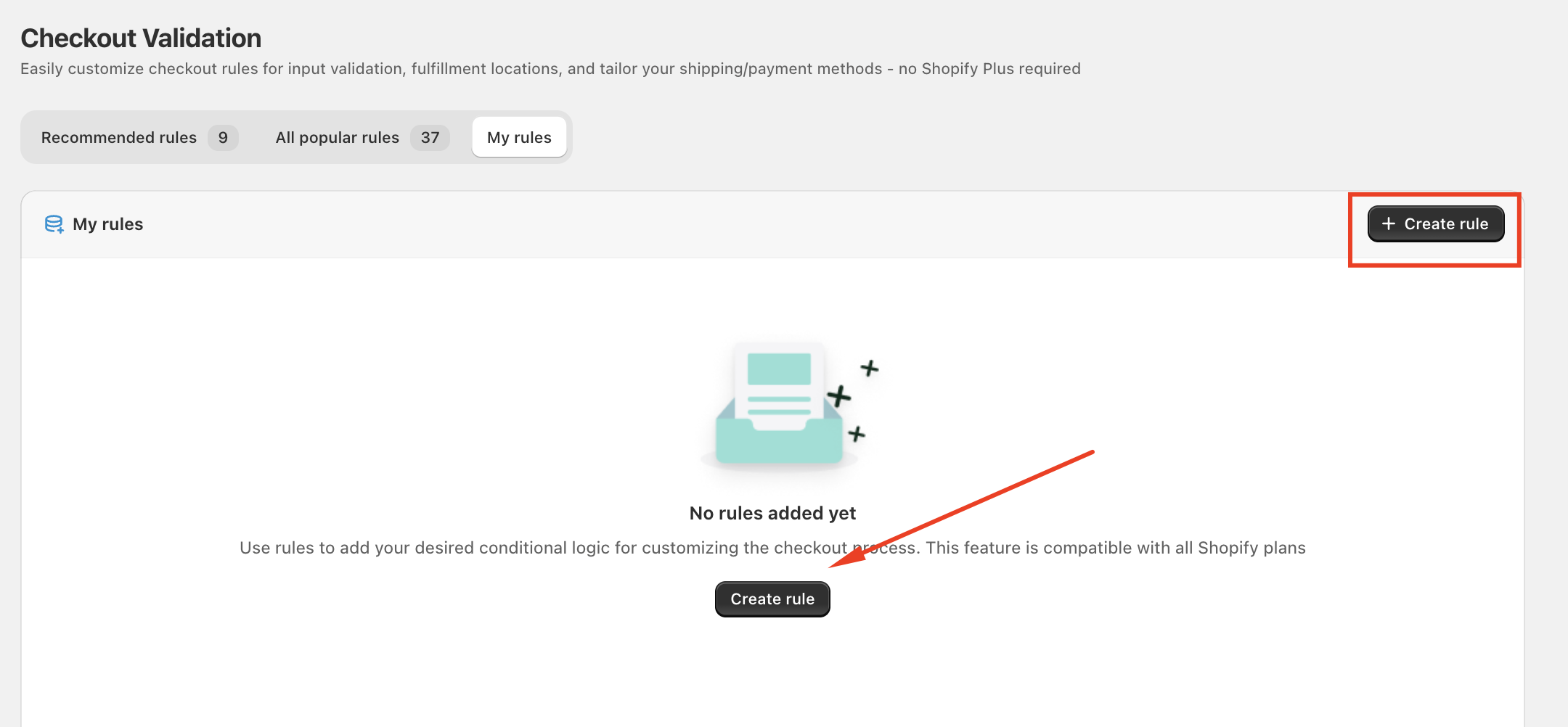
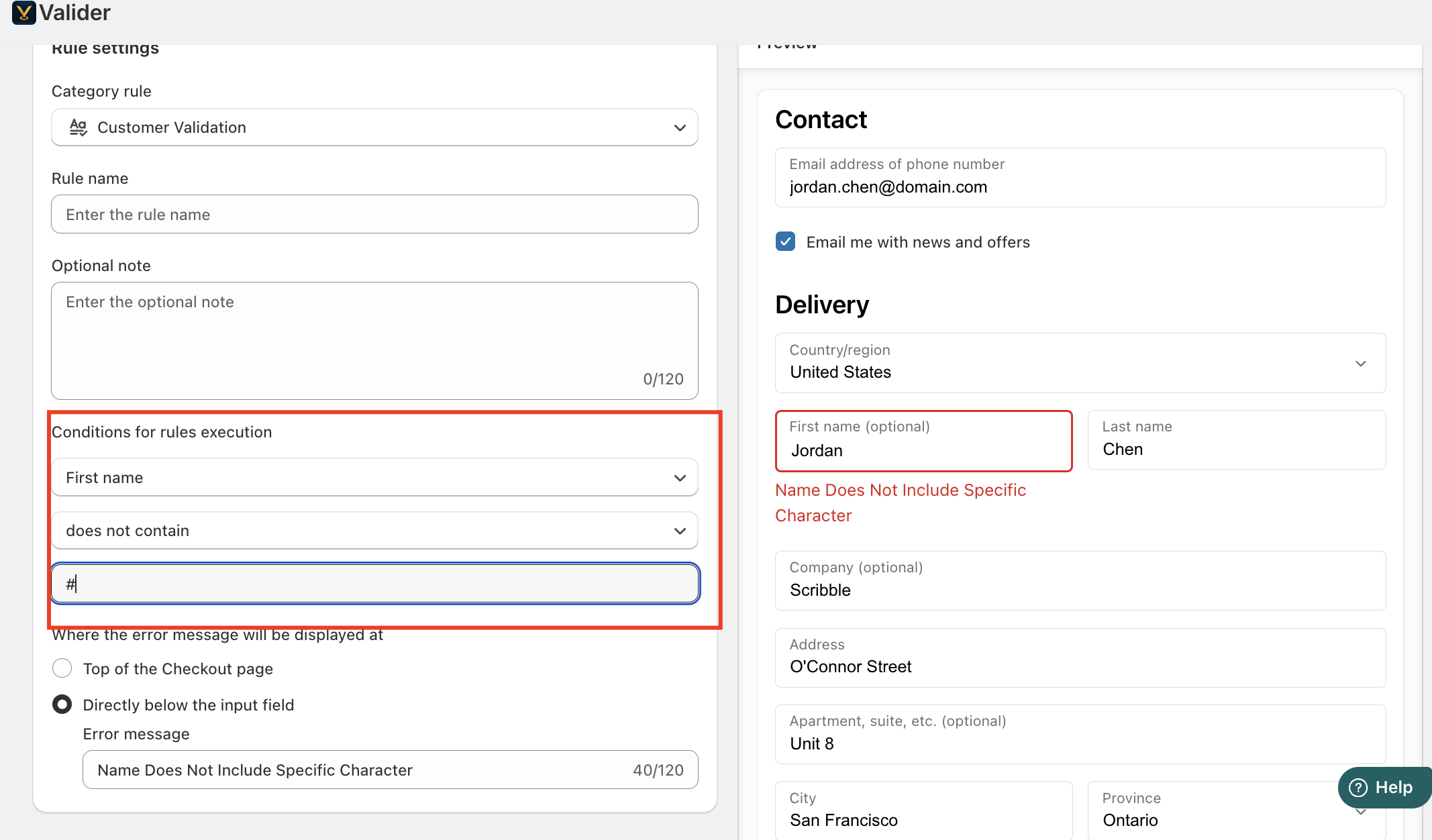
Create Individual Rules for Each Character:
Instead of blocking the whole string
!@#$%$, create separate rules for each character.Rule 1: Block
!Rule 2: Block
@Rule 3: Block
#Rule 4: Block
$Rule 5: Block
%
Conclusion:
To block individual characters in the Validator app, create separate rules for each character you want to block. This ensures that any occurrence of those characters—no matter their order—will be blocked from the form input.
If you have any issues or need more help, reach out to Validator app support for further assistance.
Was this article helpful?
That’s Great!
Thank you for your feedback
Sorry! We couldn't be helpful
Thank you for your feedback
Feedback sent
We appreciate your effort and will try to fix the article