Managing order quantities is essential for maintaining a smooth, manageable operation in your online store. While some customers may attempt to purchase excessive quantities of an item, such large orders can cause logistical and operational issues, such as stock depletion, order fulfillment delays, and higher shipping costs. The Max Quantity Restriction rule helps prevent these challenges by ensuring that customers cannot order more than a specified number of items.
Why Max Quantity Restriction Matters
There are several reasons why limiting the quantity of items per order is beneficial for your business:
Inventory Management: By restricting the total number of items a customer can purchase, you ensure that your stock levels are appropriately managed. This helps prevent running out of popular items too quickly or accidentally overselling products.
Shipping & Costs: Orders with a high quantity of items can incur substantial shipping fees, especially if items are bulky or require special handling. By enforcing a quantity limit, you can manage shipping costs and avoid unexpected pricing issues.
Fraud Prevention: Excessive orders may sometimes signal fraudulent activity, as a customer may be attempting to purchase large quantities of products to resell or engage in other illicit behavior. Limiting order quantity reduces the risk of this happening.
How Max Quantity Restriction Works
The Max Quantity Restriction rule is straightforward to set up and helps ensure that customers cannot proceed with their checkout if they attempt to order more than the allowed quantity. Here’s how it functions:
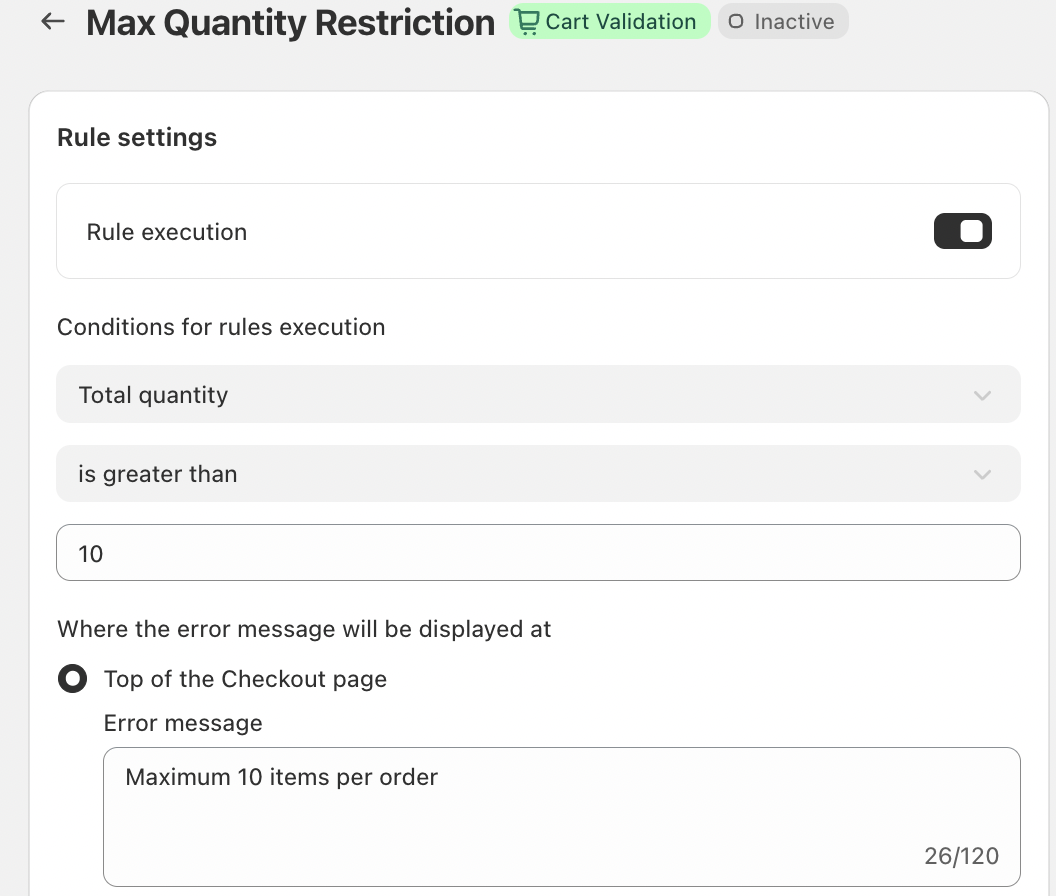
Set the Quantity Limit: You define a maximum item quantity (e.g., 10 items per order) in your store’s settings. This will be the threshold beyond which the system will trigger the restriction.
Validation: During checkout, the system automatically checks the total quantity of items in the customer’s cart. If the quantity exceeds the set limit, the system immediately triggers an error message.
Clear Feedback for Customers: When a customer’s order exceeds the allowed limit, an error message will be displayed, informing them that they cannot purchase more than the allowed number of items. The message can be customized to suit your business's tone and style.
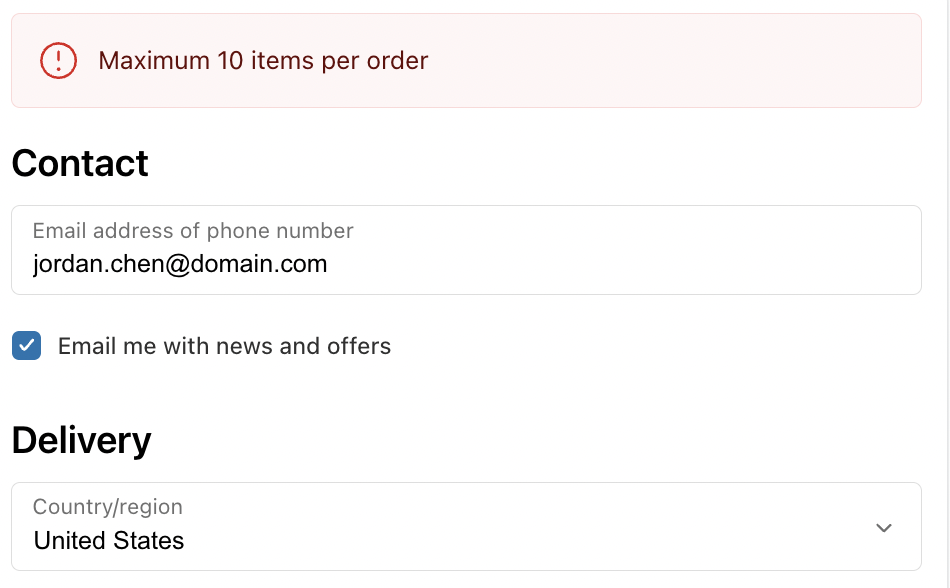
Inline Error Messaging: The error message is displayed directly on the checkout page, either at the top of the page or directly below the quantity input field, allowing for immediate visibility and quick correction.
Key Features
Universal Rule Execution: The Max Quantity Restriction rule is applied automatically to all transactions during the checkout process. This ensures that the rule is consistently enforced across all orders without requiring any action from customers or administrators.
Inline Error Messaging: If a customer attempts to exceed the quantity limit, an error message is displayed at the top of the checkout page, giving immediate feedback to the customer. This minimizes confusion and enables quick correction.
Customizable Error Messaging: The error message is fully customizable to reflect your store’s voice. For example, you might use:
“Maximum 10 items per order”
“Sorry, you can only purchase 10 items per order.”
Customizing the message allows you to maintain a professional and friendly tone while guiding customers to correct their cart.
Conclusion
The Max Quantity Restriction rule is an essential feature for businesses looking to streamline their order processing and maintain operational control. By limiting the number of items customers can order, you prevent problems related to inventory management, shipping, and order fulfillment.
This simple yet powerful tool helps reduce fraud, manage stock, and ensure that your orders are efficient and manageable. It also provides clear, real-time feedback to customers, ensuring a smooth and hassle-free checkout process.
If you have any questions or need further assistance, feel free to reach out to support@valider.app
Was this article helpful?
That’s Great!
Thank you for your feedback
Sorry! We couldn't be helpful
Thank you for your feedback
Feedback sent
We appreciate your effort and will try to fix the article