We do understand your concern about your confidential information, and somehow you do not want to share it to anyone else, thus we always do our best to check your issue without staff account needed at first.
However, in some difficult situations where we need to investigate deeper, staff account is compulsory for us to understand your problem further, and find the way to fix it. Also we do have Privacy policy here so please do not worry about leaking your valuable information.
HOW TO SEND STAFF ACCOUNT TO US
You should create a staff account to email: support@valider.app for us to log in and check your issue(s).
Make sure to give us following permissions:
- Home
- Orders
- Products
- Report (Analytics)
- Dashboard
- Discounts
- Manage and install apps and channels
- Theme (including Edit theme code)
- Domains
- Manage setting
- Checkout
- Locations
- Manage taxes settings
- Manage delivery settings
HOW TO CREATE STAFF ACCOUNT
You can read this official instruction from Shopify to create a staff account for us.
OR you simply go to Shopify dashboard > Settings > Users and Permission > Add Staff account:
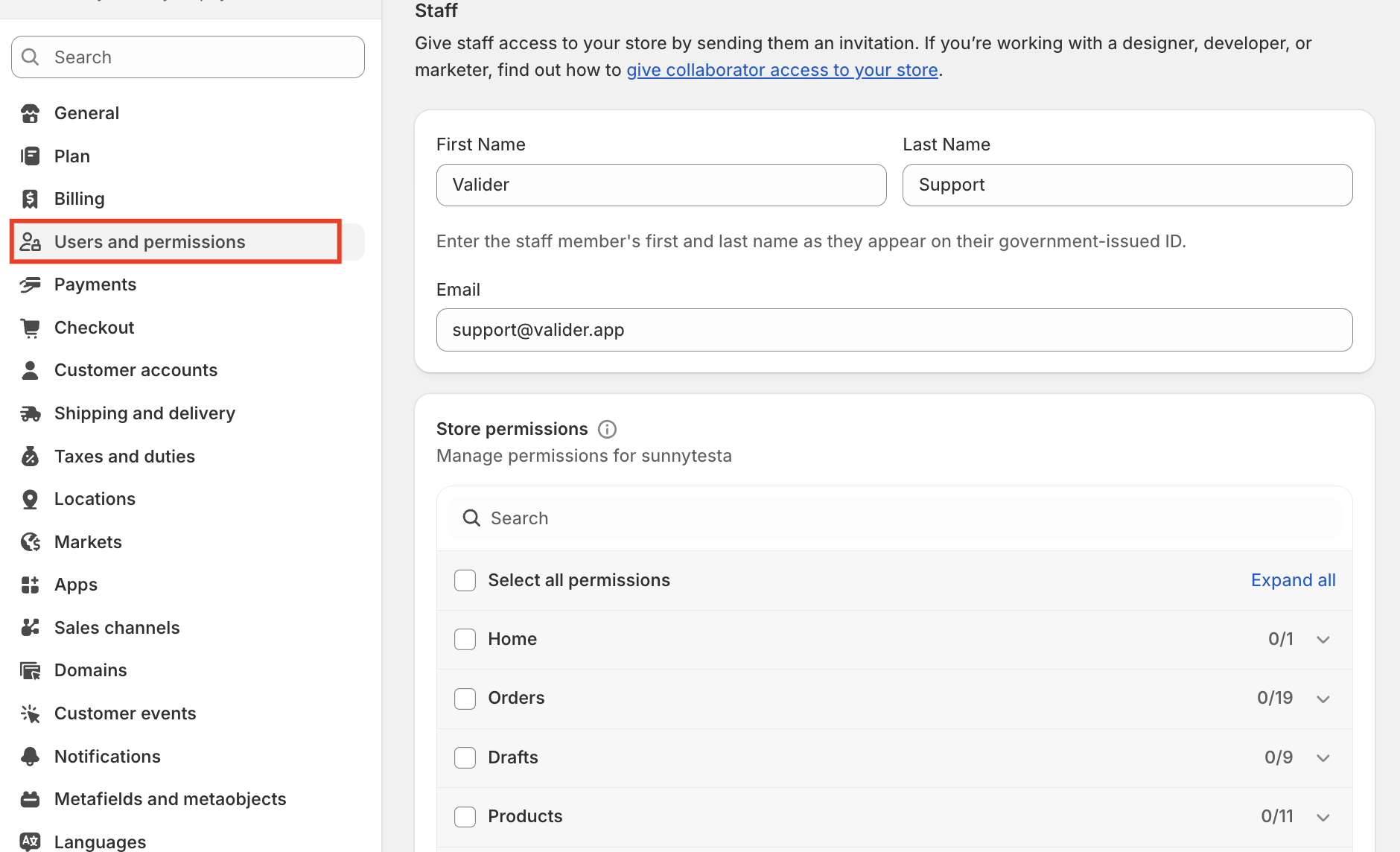
Enter a first name (Valider), a last name (Support), an email address ( support@valider.app) for the new staff member, then send the invitation to us and let us know via the email.
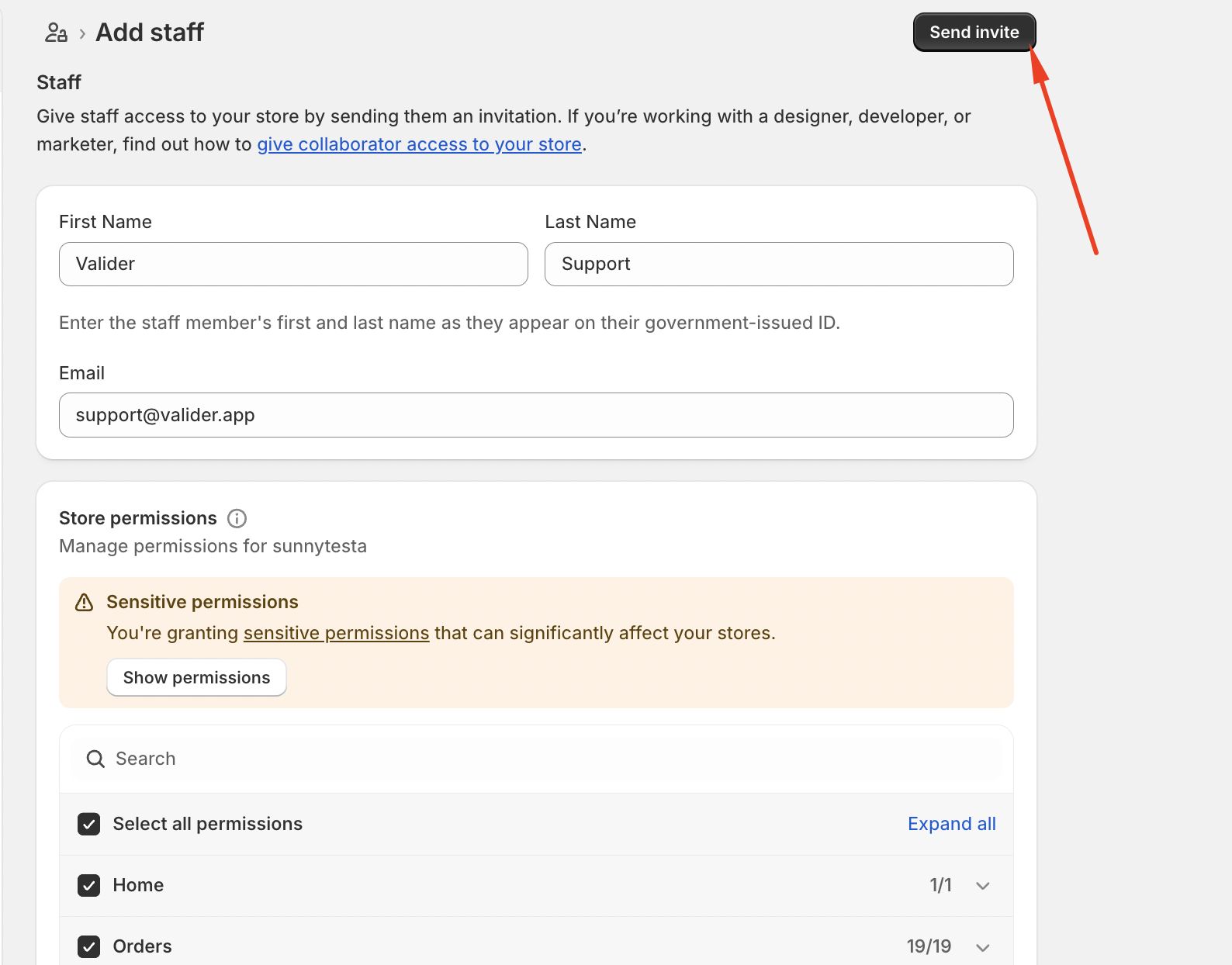
That's all.
Should you have any further questions, please feel free to drop an email to support@valider.app
Was this article helpful?
That’s Great!
Thank you for your feedback
Sorry! We couldn't be helpful
Thank you for your feedback
Feedback sent
We appreciate your effort and will try to fix the article